
Here we will go through how to assign the Airwave dimensions to any assignable Equator2 parameter in Cubase Pro.
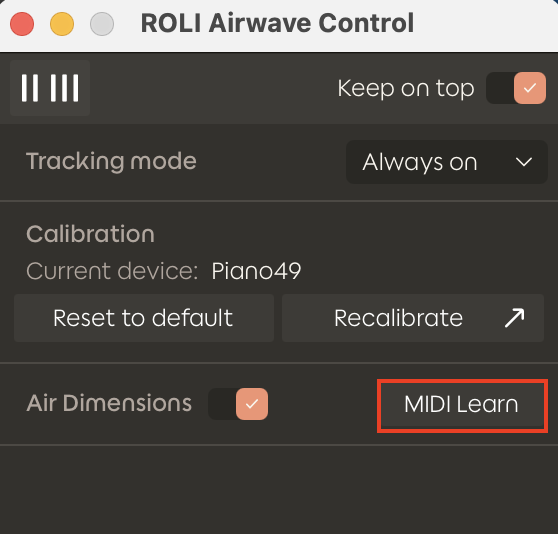
To MIDI map Airwave dimensions in a DAW, we must send Air Dimensions in isolation. In Airwave Control, you can do this by disabling Air Dimensions while in MIDI Learn mode.
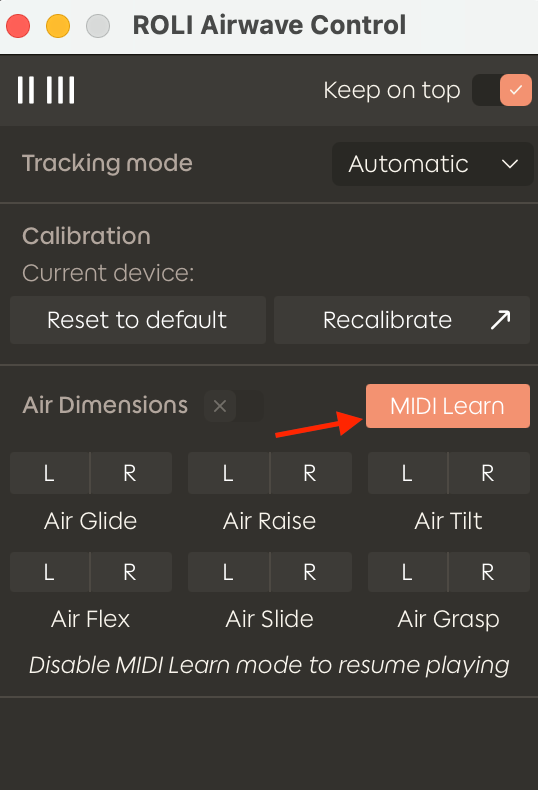
Each hand is sent separately on the following CC numbers:
CC21 — Air Grasp
CC22 — Air Slide Left
CC23 — Air Slide Right
CC24 — Air Glide Left
CC25 — Air Glide Right
CC26 — Air Raise Left
CC27 — Air Raise Right
CC28 — Air Tilt Left
CC29 — Air Tilt Right
CC30 — Air Flex Left
CC31 — Air Flex Right
In the example below, we’ll manually map the Air Raise Right dimension to the Macro 1 knob in Equator2.
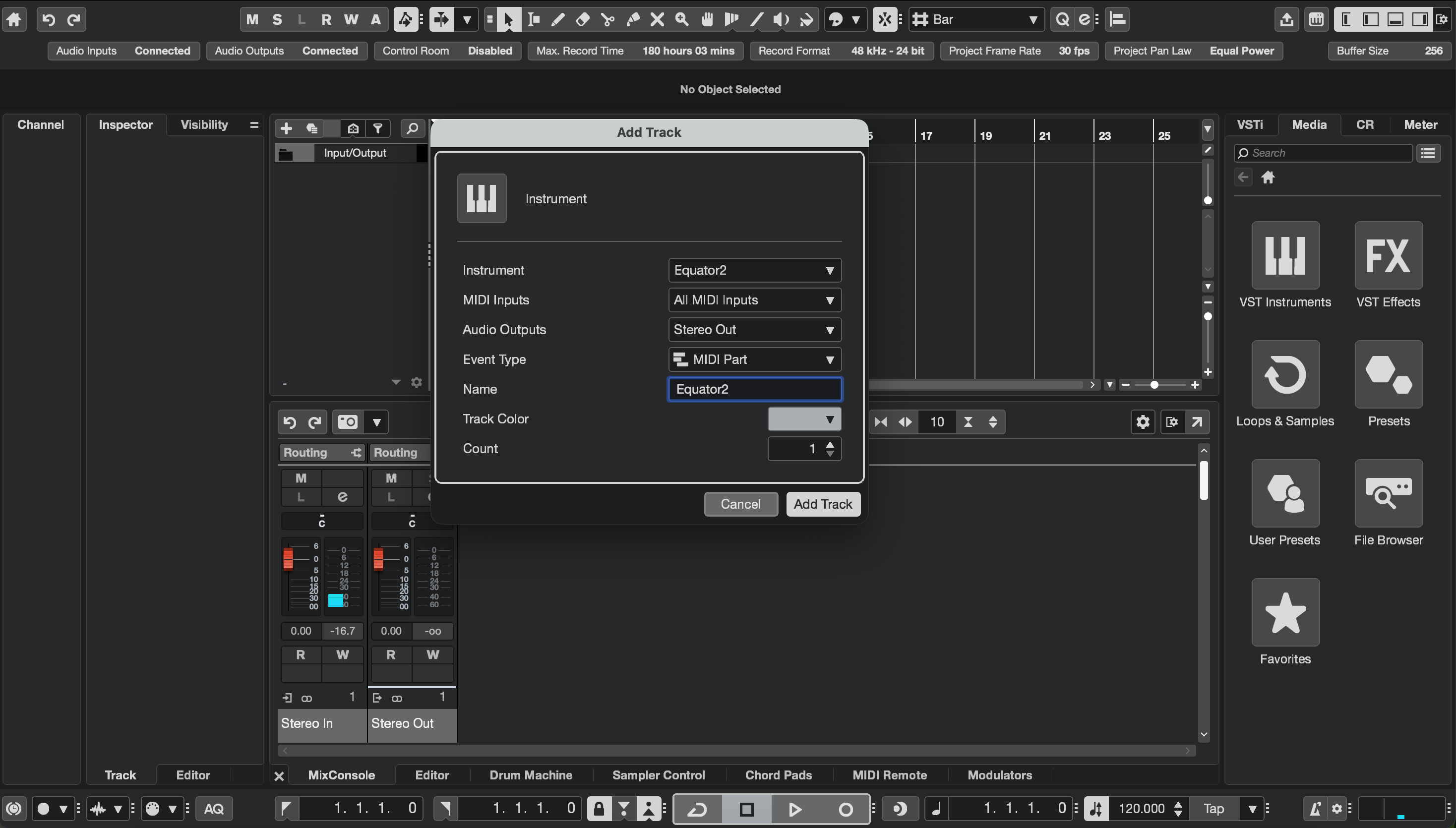
1. Create a new instrument track and load an instance of Equator2.
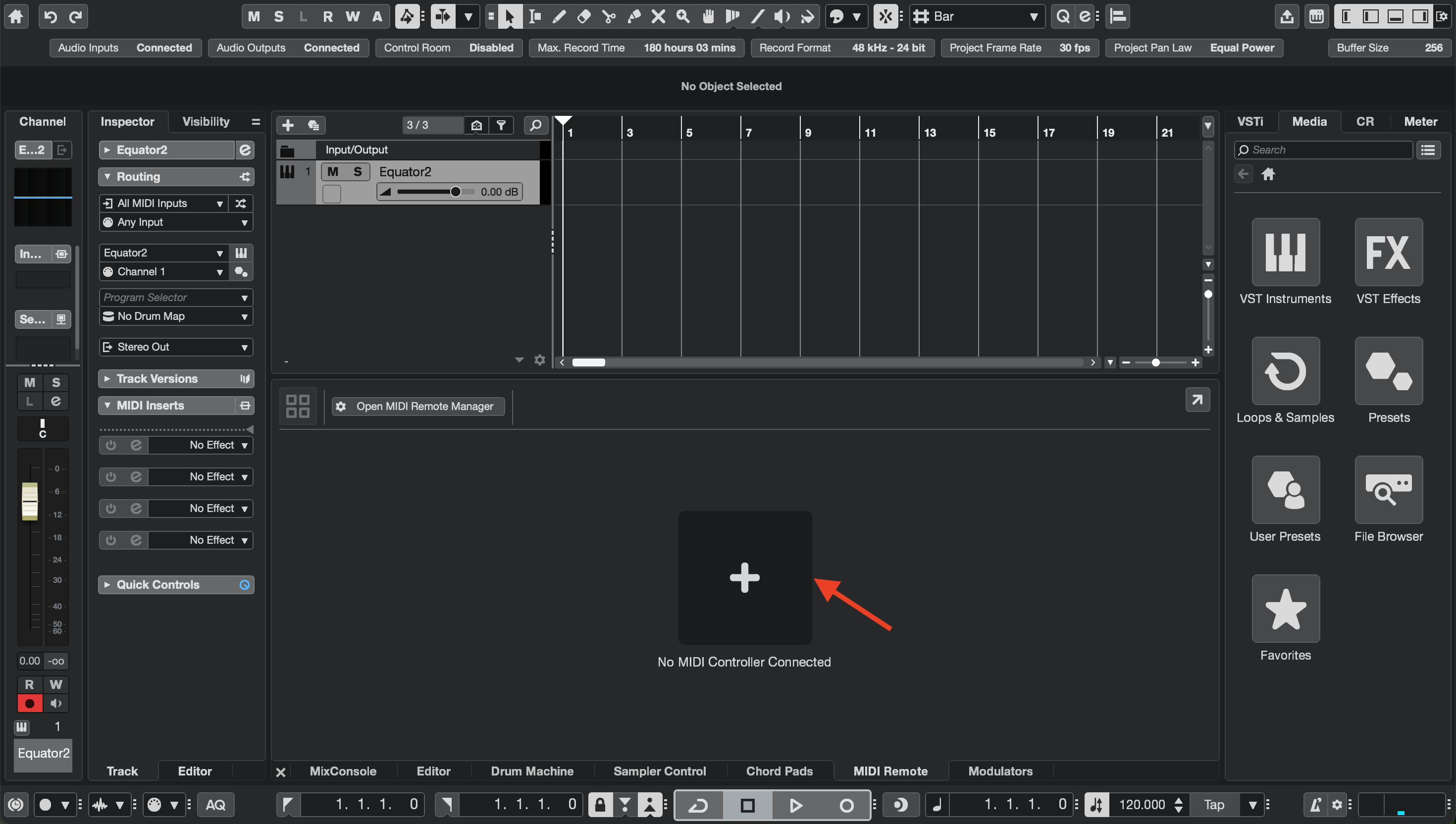
2. Click on the MIDI Remote tab at the bottom then click on the + sign to add a MIDI Controller.
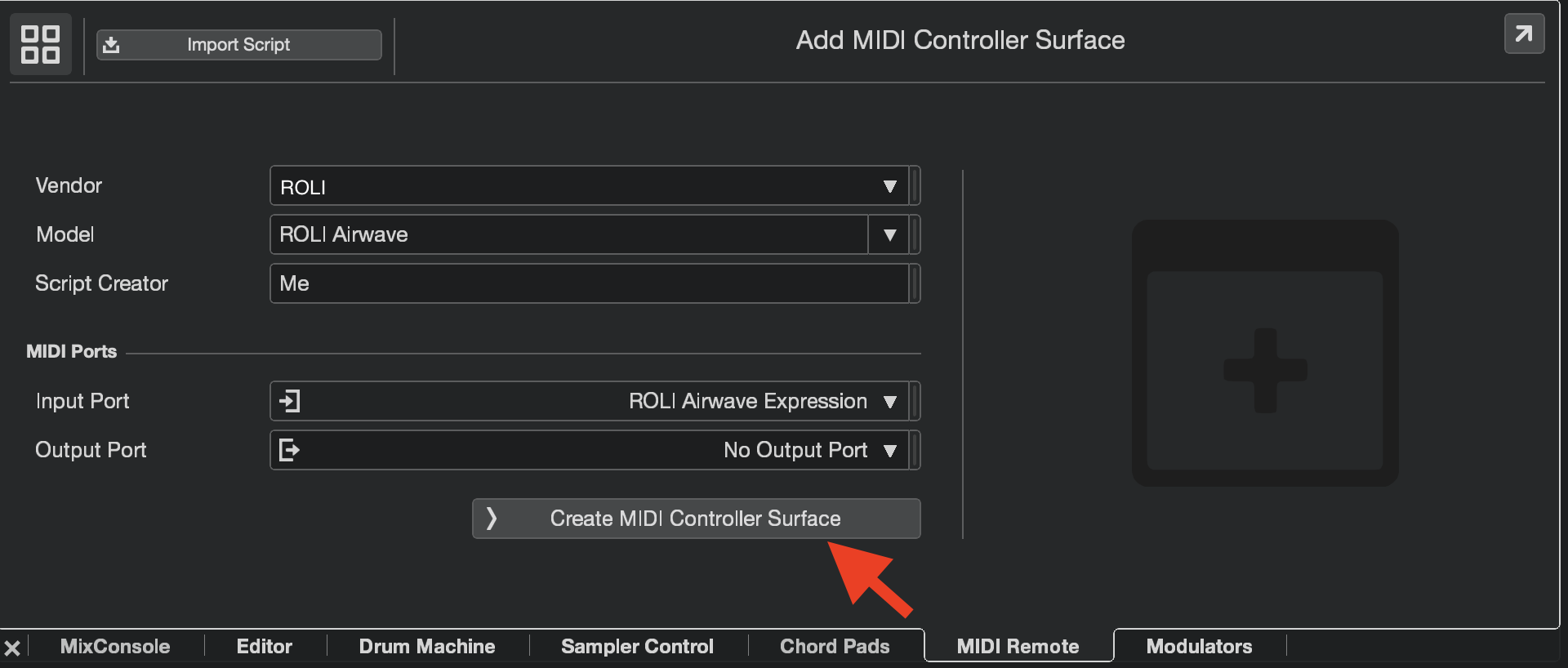
3. Enter the information in the fields as shown below, then click the Create MIDI Controller Surface button.
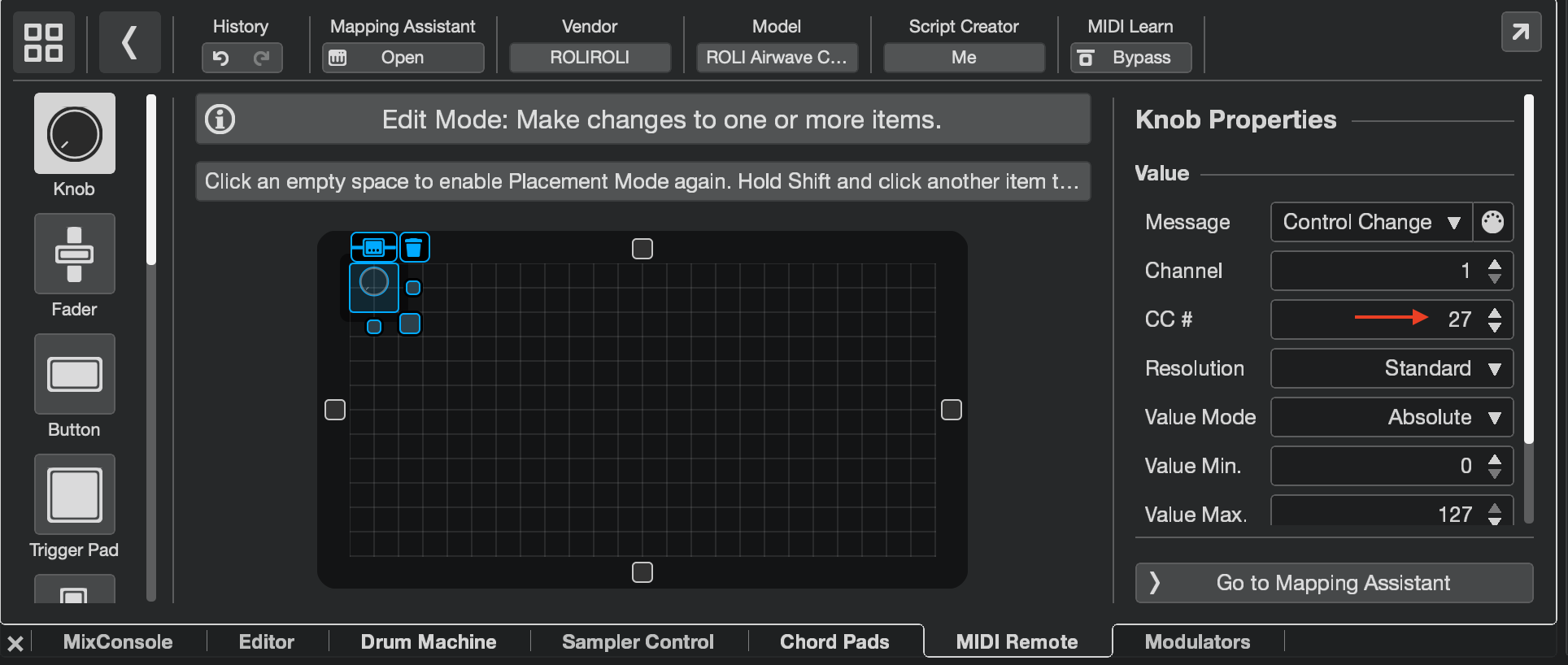
4. Within the Controller Surface window, click the blue knob and set it to MIDI CC 27 (Air Raise Right) in the knob properties.
5. Turn off MIDI Learn from ROLI Airwave Control.
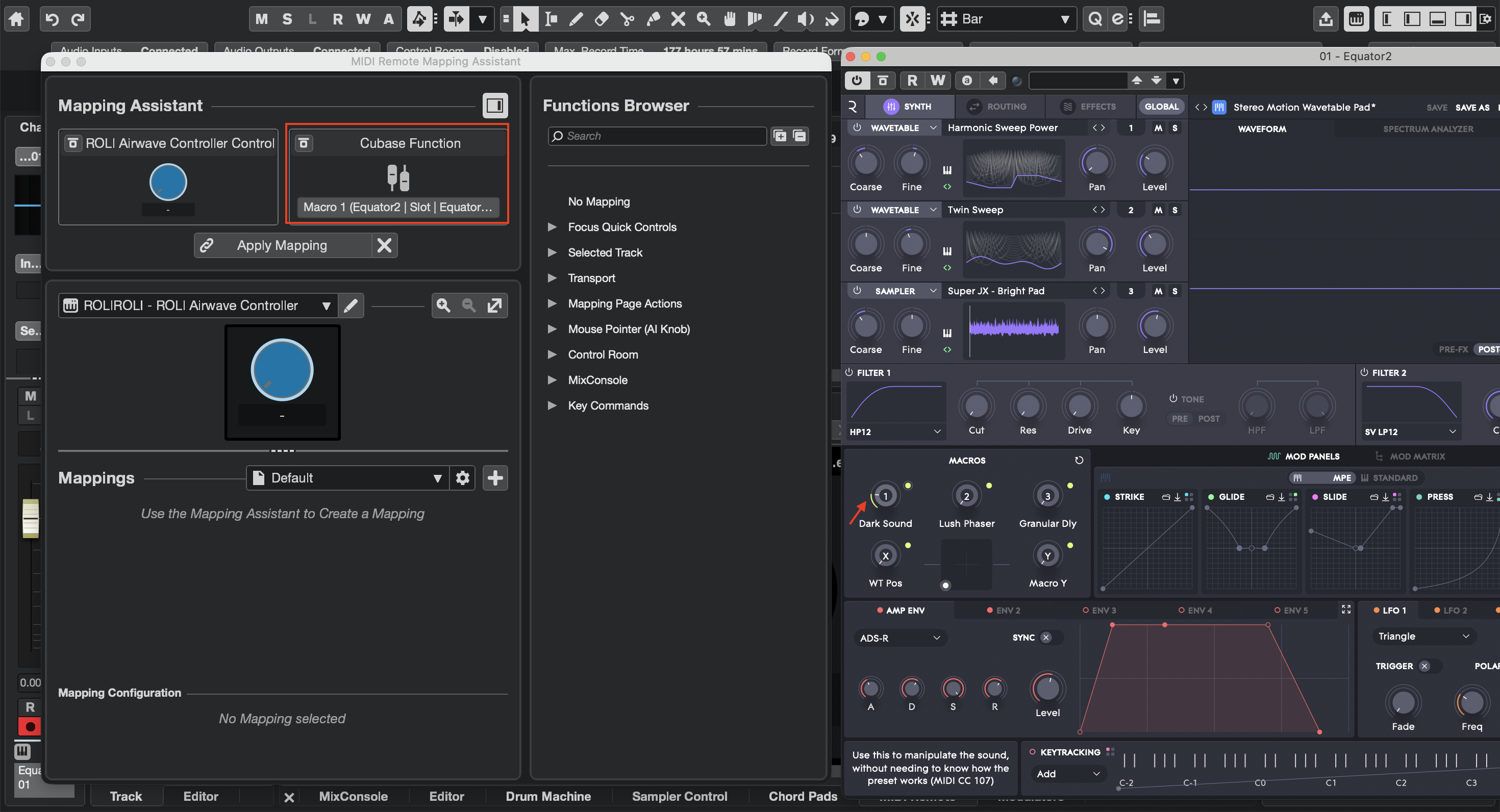
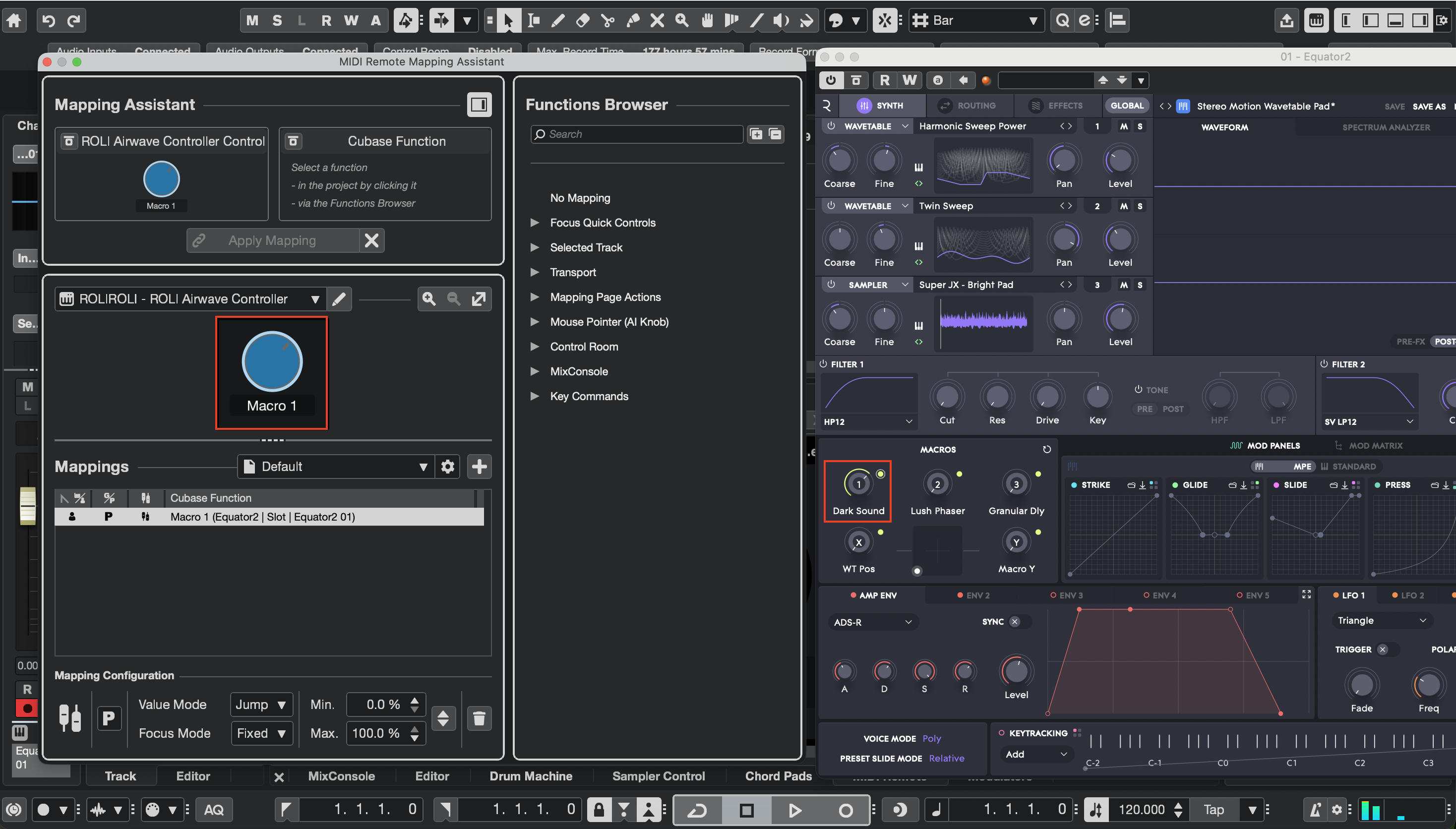
6. Go to Mapping Assistant, then open your Equator2 plugin window and move the knob you want to map to your Airwave dimension.
7. Click Apply Mapping, and your function should appear under Mappings, as shown below.
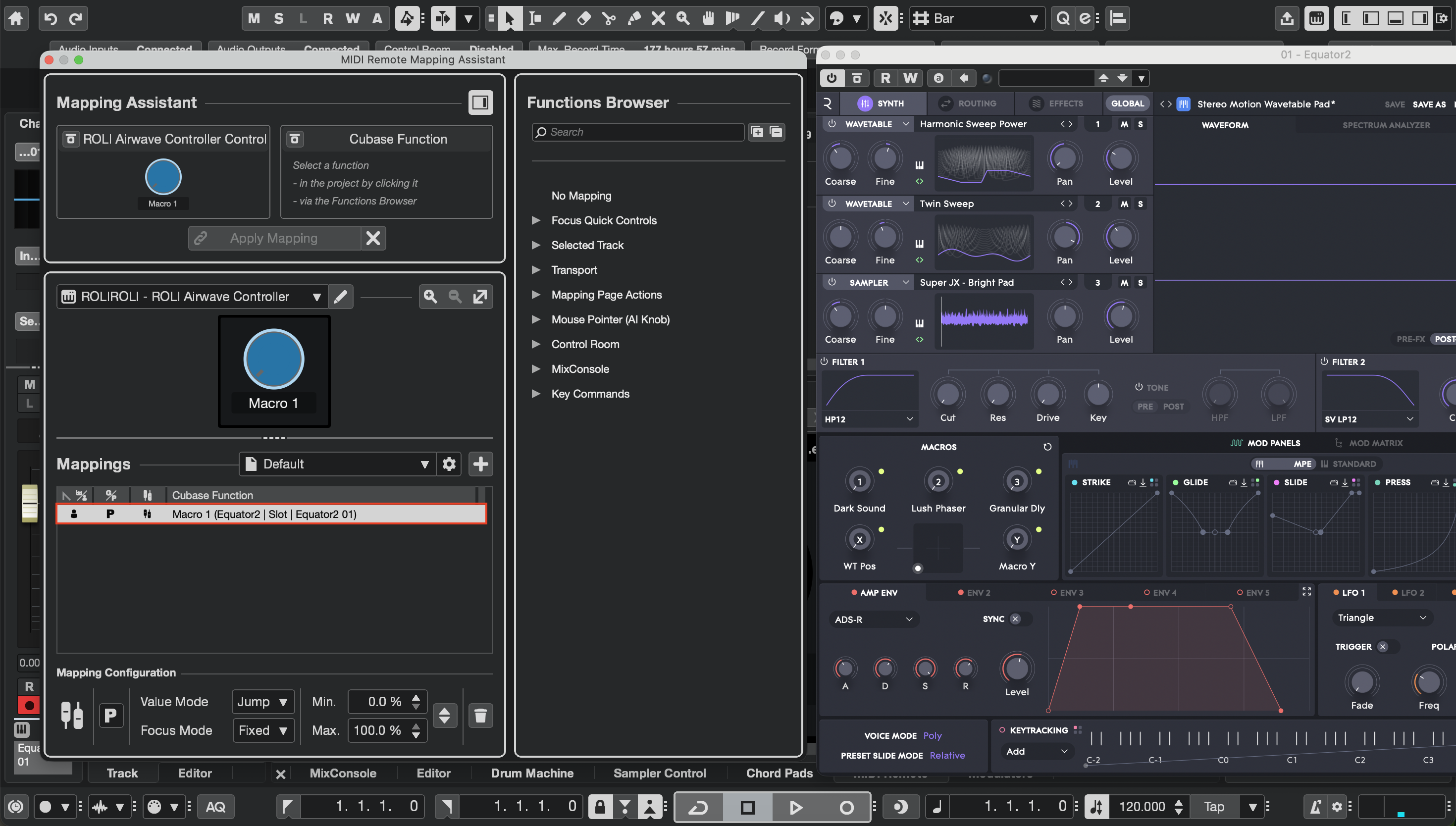
8. Perform the Air Raise gesture, and the knob will move in sync with the assigned parameter in Equator2.
Note: These steps apply to any other Airwave Air Dimensions and can be used to map them to any assignable parameter in Equator2.With these simple steps, you can map your Airwave's Air dimensions to any assignable parameter in Equator2 VST. If you need any additional help, please contact our Support Team for further assistance. Happy music-making!