
Note: If the Airwave camera isn’t being recognized on Windows when using a USB-C to USB-C cable, try connecting it through a USB-A port on your computer using either a USB adapter or a USB-C to USB-A cable. 1. As a first step, please ensure that you’re using the latest versions of both ROLI Airwave Control and ROLI Airwave Player.
2 Check that loopMIDI has been set up correctly: Air Dimensions are sent via a dedicated MIDI device called ROLI Airwave Expression, and you must virtually connect this to ROLI Airwave Player.
We recommend a free utility called loopMIDI. Click “+” in loopMIDI to create a new port called ROLI Airwave Expression.
Open the loopMIDI application, then create a new port named ROLI Airwave Expression.
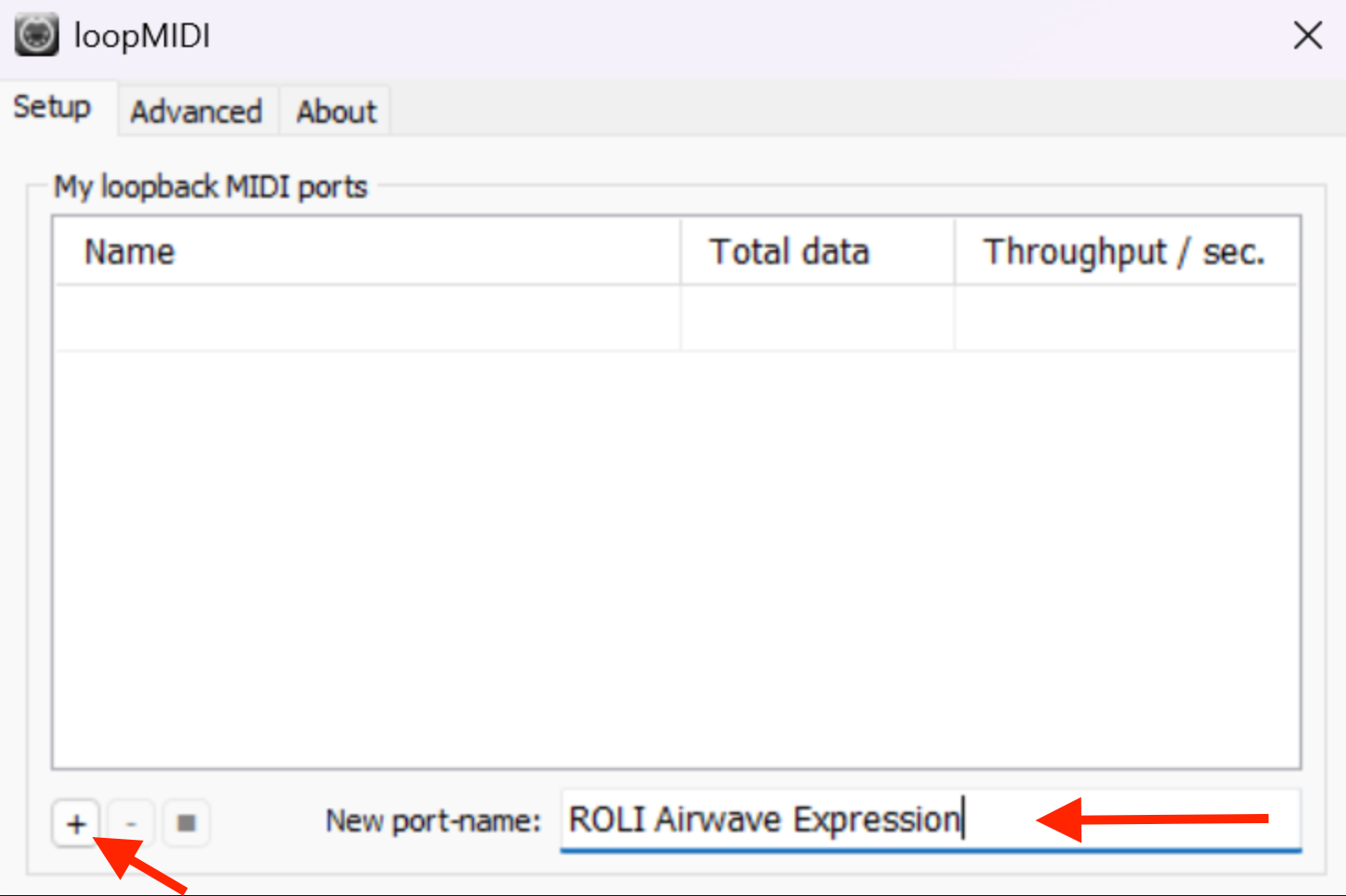
Make sure that ROLI Airwave Expression has been added to your MIDI ports list as this is needed to generate the MIDI CC stream.
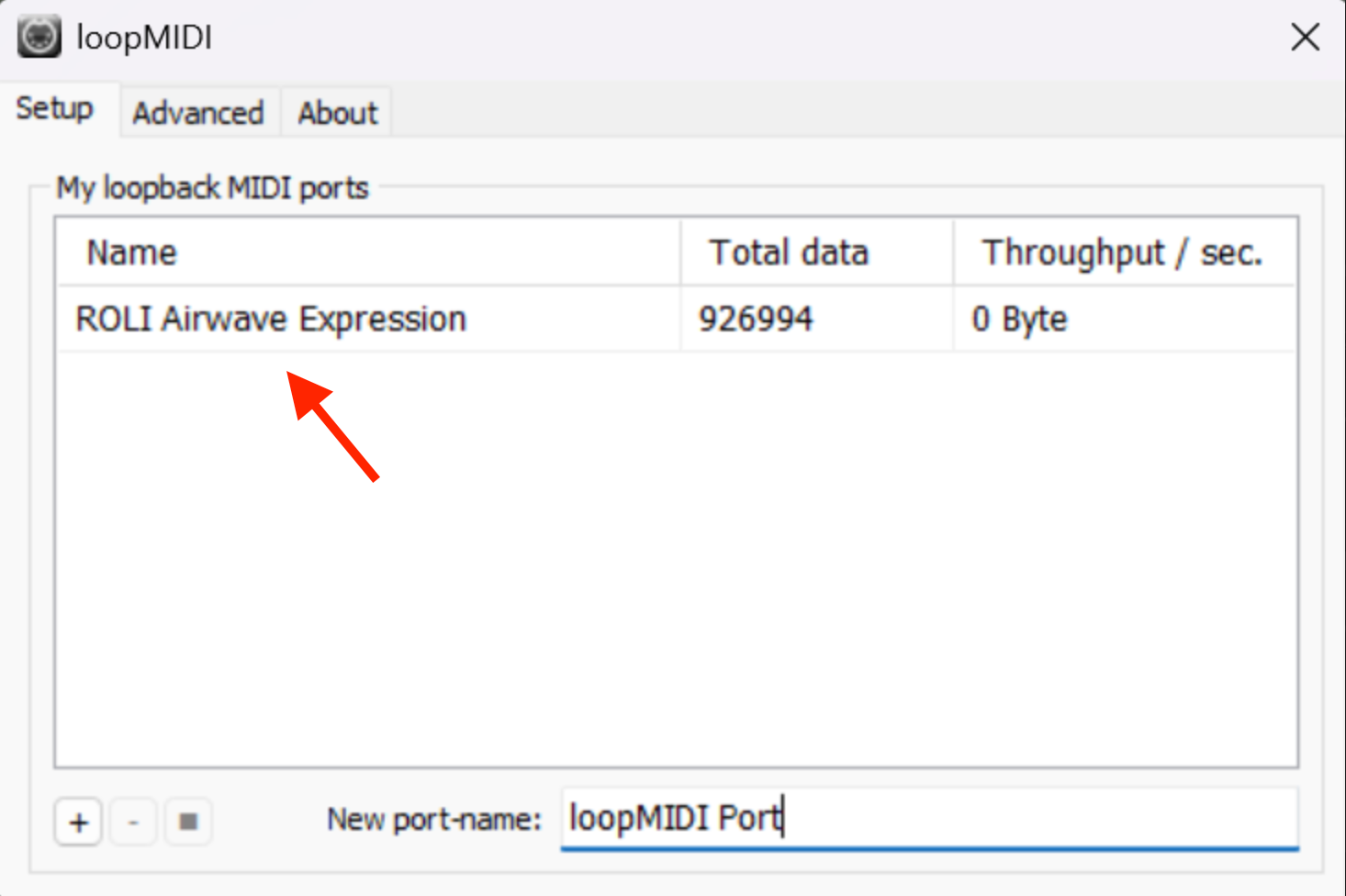
3. If the hand tracking isn’t showing in ROLI Airwave Player, please disconnect and reconnect your Airwave from the 65W power supply.
4. Open Task Manager and check if the com.roli.airwave.service is running.
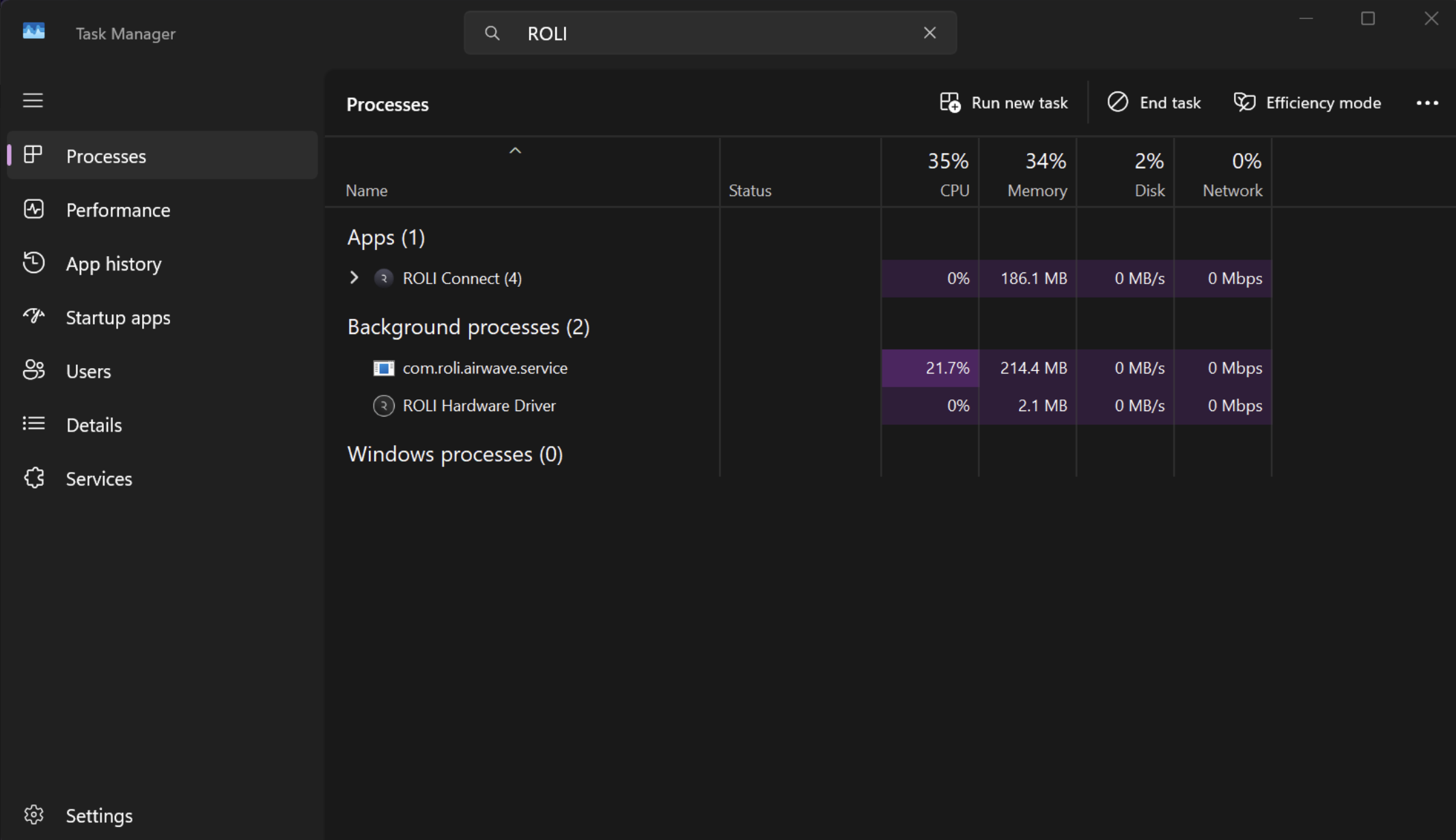
5. If the service is running and your Airwave still won’t connect, go to the Services tab, right-click it, and select ‘Stop'.
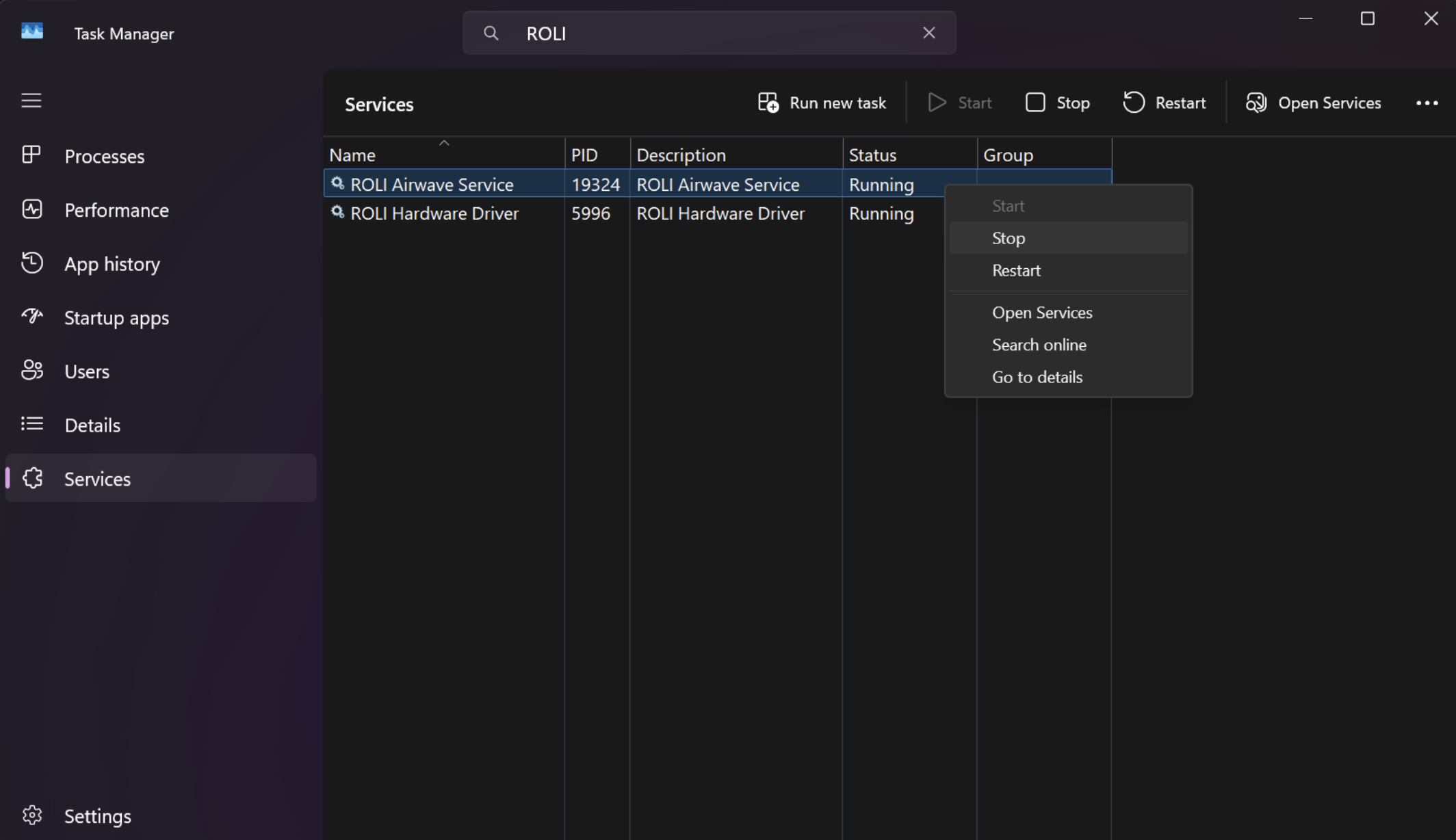
6. Next, right-click the ROLI Airwave Service and choose ‘Start’ to restart the service.
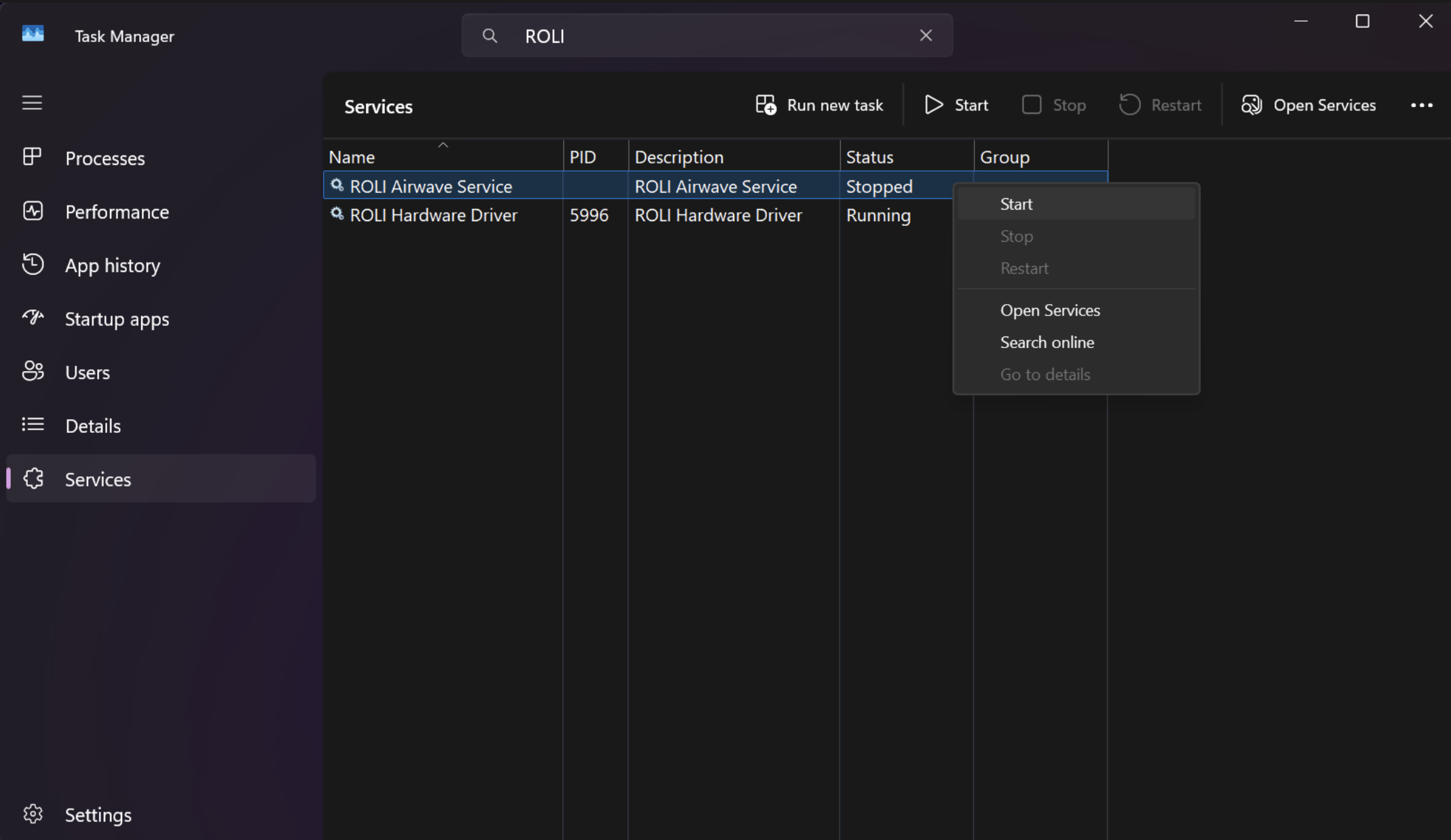
7. If you are still encountering issues, close ROLI Airwave Player and go to System -> Services, right-click on ROLI Airwave Service and select Restart.
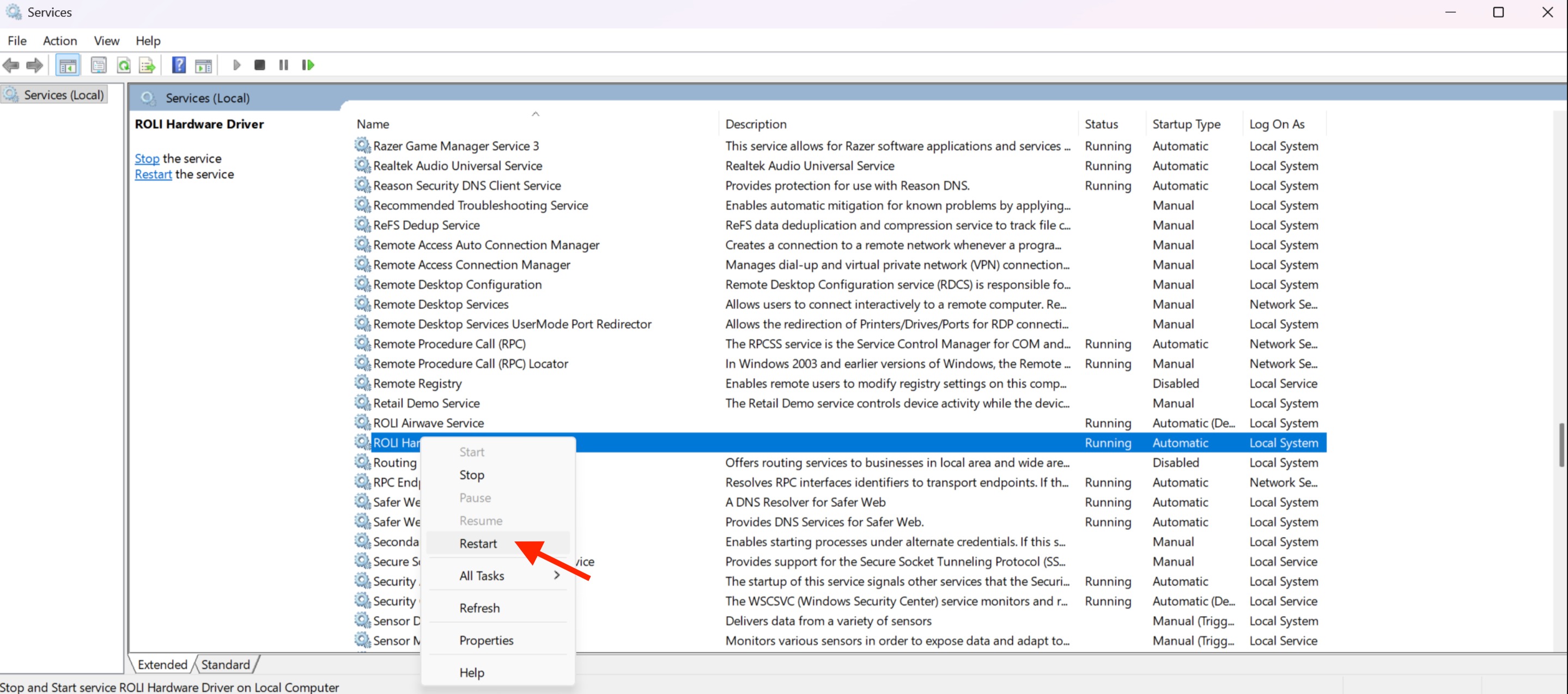
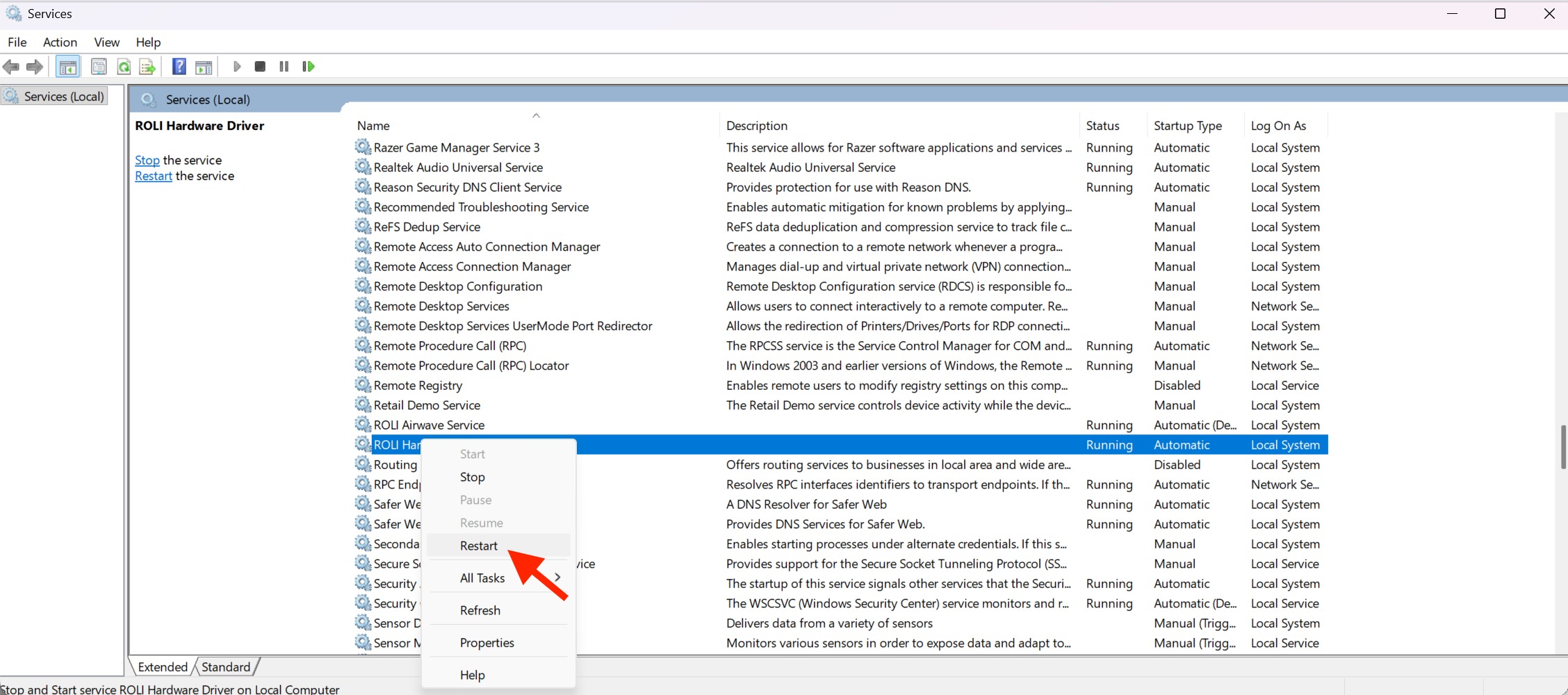
8. If you are using your Airwave with a ROLI Piano or Seaboard and experience calibration issues, you should also restart the ROLI Hardware Driver from Services.
If you need further assistance, please don’t hesitate to contact our Support Team for help.